How to Use F Keys (F1–F12) on a Laptop: Fn Key & Fn Lock
Disclosure: This post may contain affiliate links. If you purchase through these links, we may earn a small commission at no extra cost to you.
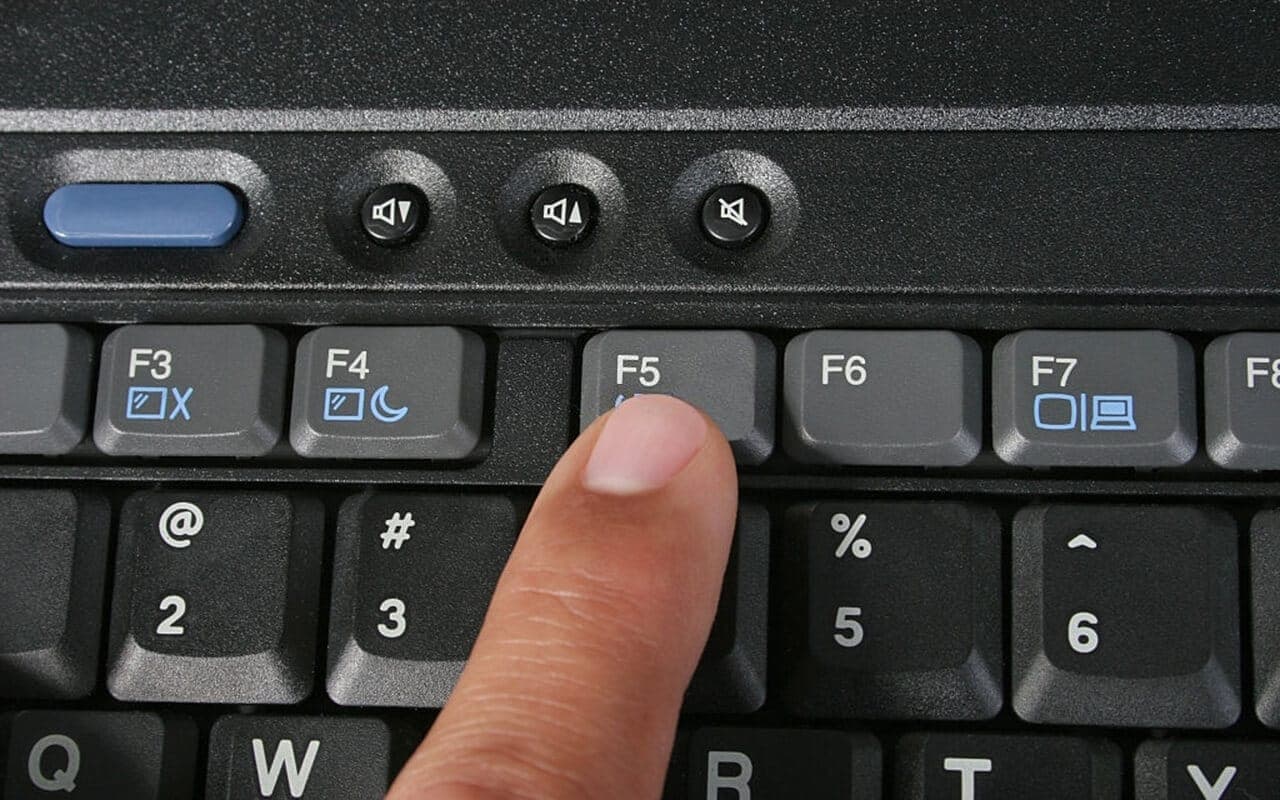
On most laptops, the top row does double duty. Pressed on its own, a key like F5 usually does whatever its icon shows (brightness, volume, mute). To get the actual F5, hold the Fn key and press F5. Some laptops ship the other way round, where F1–F12 are the default and Fn triggers the icon action.
If you use F keys a lot, you don't have to hold Fn every time: switch on Fn Lock so F1–F12 become the default. On many laptops that's Fn + Esc (look for a small padlock icon on the Esc key). Otherwise it's a BIOS or vendor-app setting, covered by brand below.
 The top row combines F1–F12 with hardware shortcuts.
Fn vs. Fn Lock: what's the difference?
- Fn works like Shift for the top row: hold it to get the key's other meaning, for that one press only.
- Fn Lock swaps which meaning is the default until you toggle it again, like Caps Lock. Many laptops have an indicator light on the Fn or Esc key that shows when it's on.
Full-size desktop keyboards, especially older Microsoft ones, sometimes have a separate F Lock key that does the same job as Fn Lock.
How to make F1–F12 the default, by brand
The exact key and menu names vary between models, so treat these as the usual places to look:
| Laptop | Toggle | Permanent setting |
|---|---|---|
| Dell | Fn + Esc on many models | BIOS setup → Function Key Behavior / Fn Lock options |
| Lenovo | Fn + Esc (FnLock light on Esc) | BIOS → Config → Keyboard/Mouse → Hotkey Mode, or Lenovo Vantage |
| HP | Fn + Esc on some newer models | BIOS (F10 at startup) → System Configuration → Action Keys Mode |
| ASUS | Fn + Esc on many models | MyASUS app → Function key lock, or the BIOS |
| Acer | — | BIOS (F2 at startup) → Main → Function key behavior |
| Microsoft Surface | Press Fn on its own (the key lights up) | — |
| Mac | Hold Fn / 🌐 Globe | System Settings → Keyboard → Keyboard Shortcuts → Function Keys → Use F1, F2, etc. keys as standard function keys |
| Chromebook | Search (Launcher) + top-row key gives F1–F10 | Settings → Device → Keyboard → Treat top-row keys as function keys |
For a step-by-step walkthrough with screenshots, see how to lock and unlock the Fn key.
 Fn Lock swaps the default meaning of the top row.
What each F key does in Windows
These are the standard meanings once you're actually sending F1–F12 (hold Fn, or turn on Fn Lock):
| Key | What it does |
|---|---|
| F1 | Opens help in most apps. In Windows 10/11, Win + F1 opens a "get help" web search. |
| F2 | Renames the selected file or folder in File Explorer. In Excel, edits the active cell. |
| F3 | Opens search in File Explorer; "find next" in browsers. In Word, Shift + F3 cycles the selected text through lowercase, UPPERCASE and Title Case. |
| F4 | Alt + F4 closes the active window (or opens the shut-down dialog on the desktop). In Excel, F4 repeats the last action or toggles $ references while editing a formula. |
| F5 | Refreshes the browser or File Explorer (Ctrl + F5 forces a full reload). In PowerPoint, starts the slideshow from the beginning (Shift + F5 from the current slide). |
| F6 | Moves focus between parts of a window, e.g. to the browser's address bar. |
| F7 | Spelling and grammar check in Word. In Chrome, Edge and Firefox, toggles caret browsing. |
| F8 | In Excel, toggles extend-selection mode. On Windows 7 and older it opened the Safe Mode boot menu; Windows 10/11 disable that by default. |
| F9 | In Word, updates the selected fields. In Excel, recalculates when calculation is set to manual. |
| F10 | Activates the menu bar in many apps. Shift + F10 acts like a right-click. |
| F11 | Toggles full-screen mode in browsers and File Explorer. |
| F12 | Opens Save As in Office apps and developer tools in browsers. In Word, Ctrl + F12 opens a document, Shift + F12 saves it and Ctrl + Shift + F12 prints it. |
During startup, one of the F keys (commonly F2, F10 or F12, depending on the brand) opens the BIOS setup or boot menu. Your laptop usually shows which one for a moment on the boot screen.
F keys not working?
- Toggle Fn Lock. If F5 changes the volume, or the volume key sends F3, Fn Lock is simply set the other way. Press Fn + Esc, or use the setting in the table above.
- Hold Fn while pressing the key. Some apps grab hotkeys differently; holding Fn confirms which layer the key is on.
- Reinstall the hotkey software. The brightness and volume functions often depend on the manufacturer's utility, such as HP's System Event Utility, Lenovo Vantage or the ASUS System Control Interface. Reinstall it from the support page for your exact model.
- Check the BIOS setting. If Fn + Esc does nothing, the default is set in the BIOS. Look for Action Keys Mode, Hotkey Mode or Function Key Behavior.
- Test with an external keyboard. If F keys work on a USB keyboard but not the built-in one, the problem is the laptop keyboard or its driver, not Windows.
Frequently asked questions
How do I press F5 on a laptop?
Hold Fn and press F5. If you need F5 often (refreshing, starting PowerPoint slideshows), turn on Fn Lock so the top row sends F1–F12 without holding Fn.
Why does F1 open a browser search instead of help?
In Windows 10 and 11, the Windows-level help for F1 (and Win + F1) is a web search. Inside apps like Word or Excel, F1 still opens that app's own help pane.
Is the Fn key the same as the F keys?
No. Fn is a modifier key, usually bottom-left near Ctrl, that switches what the top row does. The F keys (F1–F12) are the top-row keys themselves.
Can I turn the Fn key off completely?
You can't remove it, but turning on Fn Lock (or setting the BIOS option) means you only need Fn for the less-used layer. That's usually the same effect.

Tech enthusiast and founder of Technize. Passionate about making technology accessible and helping people make smarter buying decisions.
How we research and update guides