What is a USB WiFi Adapter?
Disclosure: This post may contain affiliate links. If you purchase through these links, we may earn a small commission at no extra cost to you.
USB has become very popular over the years, and it’s now possible to get just about any add-on device for your computer in USB form. So it shouldn’t surprise you that you can get a USB WiFi adapter that will allow you to connect to the Internet via a wireless router.
Your computer should have multiple USB ports, whether it’s a desktop or a laptop. As long as you have one of them free, you can connect a USB WiFi adapter, which will then communicate with a WiFi router that will allow you to access the Internet.
In this article, we’ll explain how a USB WiFi adapter works, how you can use it with a computer, and how to set it up. We’ll use layman’s terms throughout, since we know a lot about computers, but we don’t want to confuse you with a lot of technical terms that will only make your head spin!
- When do you use a USB wifi adapter?
- What does a USB WiFi Adapter Do?
- How to Use a USB WiFi Adapter on a Windows PC?
- How to Setup/Install a USB WiFi Adapter?
- Frequently Asked Questions
- Conclusion
How does a USB WiFi Adapter work?
A USB wifi adapter is a small USB stick that plugs into your laptop or computer to connect to the wifi network. The adapter uses radio waves to communicate with the router in your house, and is usually used if your computer or laptop doesn’t have built-in wifi functionality.
Note! A USB wifi adapter** isn’t a solution** if you have a bad wifi connection. It won’t make it faster. The device you then should be looking for** is called Wifi Extender**!
The USB wifi adapter needs drivers to work properly, but they’re usually already built into Windows.
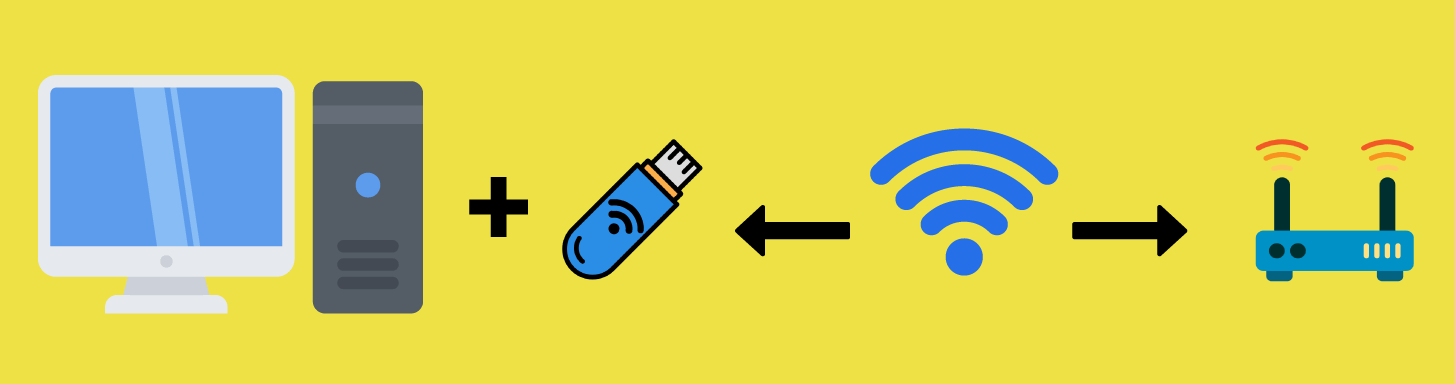
Most USB WiFi adapters have an antenna built into the stick itself. This is used to receive the signals from your WLAN router. This usually works quite well if your computer is fairly close to the wireless router.
You can also buy a USB WiFi adapter that includes an external antenna that allows you to receive your router’s WiFi signals if your computer is a bit farther away. These are more expensive than the USB WiFi adapters with built-in antennas, but they can be very useful if you move around a lot.
When you plug your USB WiFi adapter into a USB port on your computer, it can communicate directly with your processor and other important parts of your system. Therefore it’s much easier to install a USB WiFi adapter than a PCI-E WiFi adapter on your computer.
When do you use a USB wifi adapter?
If your laptop or desktop computer doesn’t have built-in WLAN functionality, you’ll need to upgrade it if you want to communicate with a WLAN router to access the Internet.
There are cards that contain all the electronics you need to work with WiFi standards and connect to a WLAN router. With a USB WiFi adapter, all the electronics you need are on a smaller scale in a USB stick that you simply plug into a free USB port on your laptop or computer.
What does a USB WiFi Adapter Do?
In simple terms, it’s a device that allows a computer to communicate with a WLAN router. Once this connection is established, the computer user can access the Internet.
Before wireless routers became popular, you needed a physical cable to connect your computer or laptop to an Internet router via the Ethernet system. Today, everything is wireless, except if you need high speed connection for gaming etc. With WiFi standards, it’s quite easy to access the Internet through a wireless router with a USB WiFi adapter connected to your computer.
How to Use a USB WiFi Adapter on a Windows PC?
If your Windows PC has never used a wireless network, you’ll probably need to perform some steps to use your USB WiFi adapter to connect to the Internet.
When your ISP installs your wireless router for you, you should tell them where your computers and other devices are located in your home or office so they can set it up in the best location. Once your Wi-Fi router is working and you’ve tested it with a device that already has a Wi-Fi connection (such as a laptop or mobile device), plug your USB Wi-Fi adapter into an available USB slot on your computer.
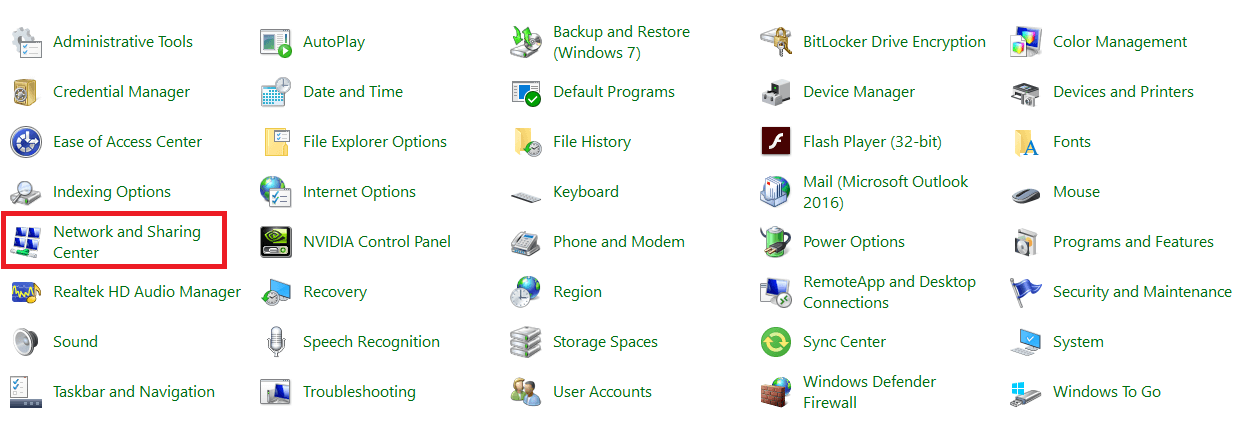
I’ll cover installing drivers and other setup requirements in another section, so I’ll assume here that your USB WiFi adapter is now ready to use. Open the Control Panel in Windows and open the “Network and Sharing Center” (depending on your Windows version, it may be called something else, like “Networks”).
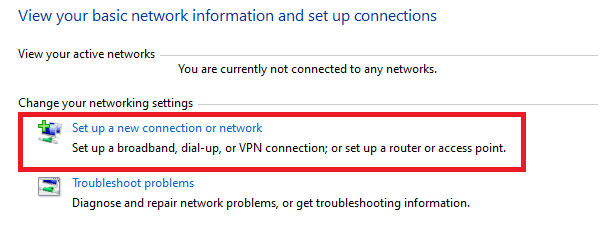
If you don’t see a wireless network there, you need to create one. This is easily done by clicking on “Set up a new connection or network” and then following the Windows instructions.
Once the wireless network is set up, your USB WiFi adapter gets to work searching for available wireless routers (Wifi). Your router should have a unique name so you can easily find it. If you live in an apartment building, there may be many different wireless networks (routers) that are recognized by your USB adapter, so you should know the name of your router.
In the final step, you’ll select your wireless network from the list and then be prompted to enter an “SSID”. This is just a fancy name for the password used to set up your wireless router. If your ISP did this for you, they’ll give you this password. If you enter it correctly, you’ll be able to connect to your wireless router.
If you aren’t prompted to enter an SSID or password, it probably means that your wireless network isn’t secure. You need to fix this, otherwise anyone with a wireless adapter can connect to your wireless network. Ask your ISP for help if you need it.
How to Setup/Install a USB WiFi Adapter?
All WLAN adapters require additional software to function properly. These are called “drivers”. When choosing a USB WiFi adapter for your computer, you should check which versions of Windows it works with so you don’t have any problems setting it up.
If your USB WiFi adapter came with a driver CD, keep it handy because you’ll need it to install the device properly. If you don’t have a driver CD, I highly recommend searching online for the correct drivers and then downloading them on another computer. Copy them to your desktop before you plug in your USB WiFi adapter.
Once you plug in your USB WiFi adapter, Windows should detect it and automatically try to install the correct drivers for the device. Windows is pretty good at detecting WiFi adapters and installing the correct drivers, but this doesn’t always work 100% of the time.
Even if Windows does this correctly, I’d always recommend installing the drivers from CD or the downloaded drivers. The reason for this is that the Windows drivers are very basic and you’ll probably find that your USB WiFi adapter works better if you install the correct drivers.
Once you’ve gone through this process, your USB WiFi adapter will be ready to use (assuming there are no errors or other problems). You shouldn’t need to install the drivers again. If you’re having problems, you should put on a cup of coffee, because it could be a long night solving the problems!
Frequently Asked Questions
Conclusion
The USB WiFi adapter is popular because it is easy to install on any computer and the small form factor makes it easy to transport and use on multiple computers. I hope you enjoyed this article, and if you have any questions or comments, please don’t hesitate to post them below.

Tech enthusiast and founder of Technize. Passionate about making technology accessible and helping people make smarter buying decisions.