How To Always Run Programs As Administrator In Windows 7
Disclosure: This post may contain affiliate links. If you purchase through these links, we may earn a small commission at no extra cost to you.
Microsoft introduced a new feature in Windows Vista and Windows 7 that separated the administrator role from normal users. Even the user with administrative privileges have to go to administrative mode to run certain applications which includes critical system apps in order to provide more security to Windows users.
The problem with this approach is that if we want to run one program again and again, it will always ask for that administrative privilege. If you want to always allow a program to use administrative privileges when run, then follow the steps below to grant administrative access to that program.
-
Right click the program you wish to grant administrative privileges
-
Go to Properties –> Compatibility Tab
-
At the end of the compatibility tab, you will find the following check box:
Run this program as an administrator
-
Just check the check box and click OK and then again OK.
-
This will grant administrative privileges to that program permanently.
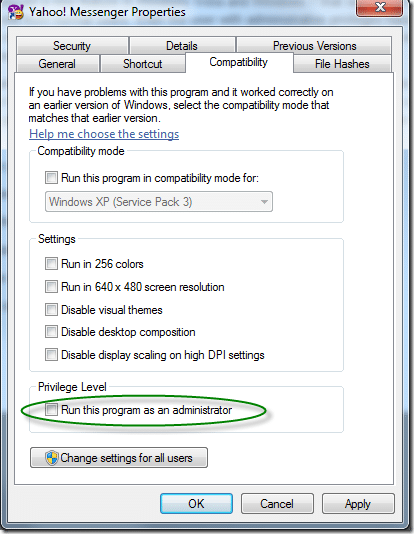
If you want to grant the program administrative privileges for all the users, then you can do so by going again to compatibility tab and clicking Change settings for all users.
Check the check box which says Run this program as an administrator.
Now the program will run in administrative mode for all the users of the system.

Tech enthusiast and founder of Technize. Passionate about making technology accessible and helping people make smarter buying decisions.