Laptop Ports Explained: Identify Every Port (2026)
Disclosure: This post contains affiliate links. We earn a commission on purchases made through these links, at no extra cost to you.
Every port on your laptop is one of a small set of standard shapes, and once you can tell them apart you can figure out what any of them do. The tricky part in 2026 isn't the old-school ports like HDMI or the audio jack — it's that a single USB-C port can mean five different things depending on the laptop, which is why "USB-C" alone doesn't tell you what a port actually supports. Below is a quick identification table, followed by a deeper look at each port, a full breakdown of USB-C's hidden variations, which ports are disappearing, and what to expect on a gaming laptop.
Quick port identification table
| Port | Looks like | What it does | Max speed / power |
|---|---|---|---|
| USB-C | Small oval, no visible pins, reversible | Data, video, charging — varies by laptop | Up to 80Gbps (USB4 v2), 240W PD |
| USB-A | Rectangular, flat on one side | Data transfer, keyboards, mice, flash drives | Up to 10Gbps, fading from thin laptops |
| HDMI | Trapezoid-shaped, wider than tall | Video + audio to a TV or monitor | Up to 48Gbps (HDMI 2.1) |
| Ethernet (RJ-45) | Wide clear plastic clip-in jack | Wired internet connection | Up to 2.5Gbps on newer laptops |
| 3.5mm audio | Small round hole, usually black | Headphones/headset with mic | Analog audio only |
| SD / microSD | Thin horizontal card slot | Memory card reader for cameras | Up to ~312 MB/s (UHS-II) |
| Thunderbolt | Identical shape to USB-C, lightning bolt icon | Data, video, charging, external GPUs | 40Gbps (TB4) / 80Gbps (TB5), 120Gbps display burst |
| DC barrel jack | Round pin-in-hole, often with a colored ring | Proprietary power adapter | Varies, often 150–330W on gaming laptops |
| Security lock slot | Small rectangular or oval metal-rimmed hole | Anchors a cable lock | Physical security only |
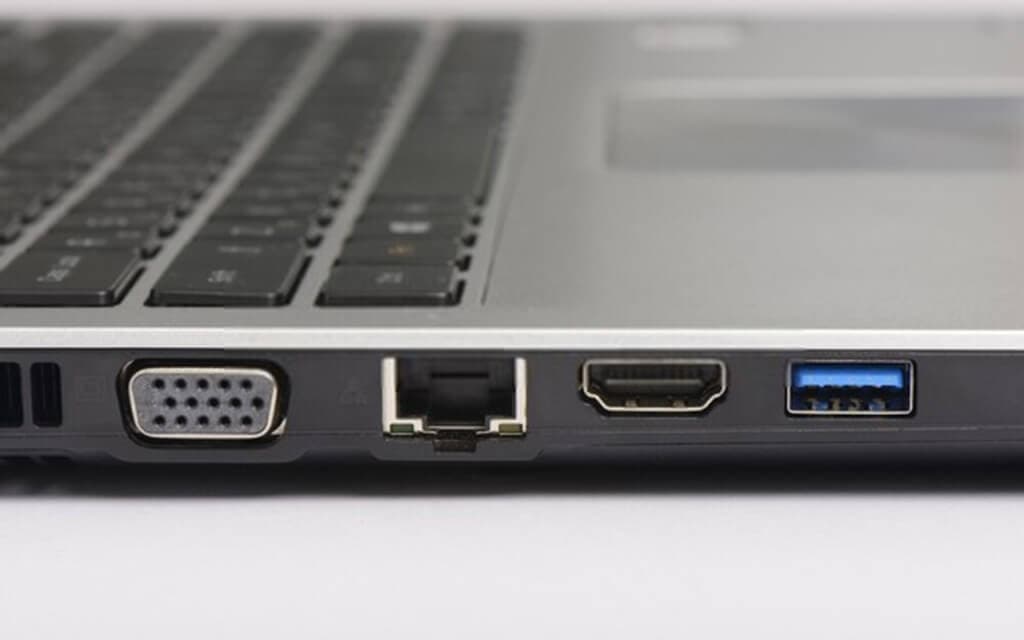
Legacy ports you may still see on older laptops: VGA (blue 15-pin, D-shaped), Mini DisplayPort (small trapezoid, no HDMI notch), and the now-vanished optical drive slot for CDs/DVDs (see our guide on what to do about a laptop that doesn't have a CD drive).
USB-C
USB-C is the small, oval, reversible port found on nearly every laptop sold since 2020. The shape alone tells you almost nothing — see the disambiguation section below before assuming what a given USB-C port can do.
How to identify it: oval outline, no visible metal pins, plugs in either way up. Look for tiny printed icons next to the port — a lightning bolt, "SS" with a number, a DisplayPort logo, or a battery symbol — these are your only reliable clues without checking the spec sheet.
USB-A
The classic rectangular USB port is still common on business and budget laptops but increasingly absent from thin ultraportables.
How to identify it: a flat rectangular opening, plugs in only one way. Color is a rough (not official) guide: black or gray usually means USB 2.0, blue usually means USB 3.0/3.2 Gen 1 (5Gbps), and some vendors use red or teal for faster Gen 2 (10Gbps) ports or ports that stay powered when the laptop is off. Because color-coding was never standardized by the USB-IF, treat it as a hint, not a spec — check your laptop's documentation to confirm actual speed.
HDMI
HDMI ports send both video and audio to a TV, monitor, or projector over a single cable.
How to identify it: a trapezoid-shaped port, noticeably wider than it is tall, with one bevelled edge. The physical connector looks identical across HDMI versions — 1.4, 2.0, and 2.1 all use the same 19-pin shape — so the port's actual capability depends entirely on which HDMI standard is wired behind it, not what it looks like. That matters because it decides whether you can drive a 4K display at 60Hz or higher; for the full breakdown of which HDMI version you need and how to check yours, see our guide on whether your laptop can output 4K.
Ethernet (RJ-45)
The Ethernet port connects your laptop to a router with a physical cable for a faster, more stable connection than WiFi.
How to identify it: a wide, clear plastic jack with a spring clip, noticeably larger and squarer than a headphone jack. Most Ethernet ports on modern laptops no longer have status LEDs built in. Business and gaming laptops increasingly ship with 2.5Gbps Ethernet controllers instead of the older 1Gbps standard.
3.5mm audio jack
The headphone jack is one of the few ports that hasn't changed in decades and remains standard on laptops even as it has largely disappeared from phones.
How to identify it: a small round hole, usually black, often marked with a headphone icon. Most laptops now use a single combo jack that handles both headphone output and microphone input through a 4-pole connector, rather than separate headphone and mic jacks.
SD card reader (full-size and microSD)
SD card readers let you transfer photos and video directly from a camera without a separate card reader accessory.
How to identify it: a thin, flat horizontal slot, usually on the side or front edge, sized either for a full SD card or the smaller microSD format. Full-size SD slots became less common on thin laptops through the late 2010s, but they're making a comeback on creator-focused machines — Apple brought a full-size SDXC slot back to the MacBook Pro, while the ultra-thin MacBook Air still omits it entirely.
Thunderbolt
Thunderbolt uses the same physical connector as USB-C but layers on much higher bandwidth and additional capabilities like driving an external GPU.
How to identify it: identical oval shape to USB-C, distinguished only by a small lightning bolt icon printed next to the port. Thunderbolt 4 and Thunderbolt 5 both use this icon; Thunderbolt 5 pushes bandwidth to 80Gbps, with a "Bandwidth Boost" mode that can push up to 120Gbps toward a display when needed. As of 2026, Thunderbolt 5 is showing up mainly on Apple's higher-end MacBook Pro chips and a growing number of premium Windows laptops and mobile workstations.
DC barrel jack
The round barrel jack is the traditional proprietary power connector, still common on laptops that need more power than USB-C can currently deliver.
How to identify it: a round hole with a metal pin inside, often ringed in a color that matches the included power brick. It only does one thing — accept power from that laptop's specific charger — and cables aren't interchangeable between brands.
Security lock slot (Kensington and newer formats)
The lock slot lets you anchor your laptop to a desk with a cable lock, mainly on business and shared-use machines.
How to identify it: a small rectangular metal-rimmed hole, usually on a side edge. The classic Kensington-style slot ("K-Slot") has been the industry standard since the early 1990s, but thinner modern laptops increasingly use newer, roughly 70% smaller formats — Kensington's Nano Security Slot and similar wedge-shaped slots — that fit machines too slim for the older cutout. A Nano lock won't fit a standard K-Slot and vice versa, so check which shape your laptop has before buying a cable lock.
The USB-C disambiguation: same port, different capabilities
This is the single biggest source of confusion with modern laptop ports. USB-C describes a connector shape, not a fixed set of capabilities — two laptops with an identical-looking USB-C port can support completely different things:
- Charging-only or USB 2.0 data — no video output, slow file transfer
- USB 3.x data — fast file transfer, no video
- DisplayPort Alt Mode — can drive an external monitor
- Thunderbolt 3, 4, or 5 — data, video, power, and external GPU support, all at once
- USB4 — a newer baseline spec that unifies much of Thunderbolt's functionality without requiring the Thunderbolt brand
How to tell them apart without guessing:
- Look for printed icons next to the port. A lightning bolt means Thunderbolt. A "DP" logo means DisplayPort Alt Mode. A battery-with-plug icon means it can charge the laptop. "SS" with a number (or a plain number like "10" or "20") indicates SuperSpeed data rates in Gbps.
- Check current USB-IF labeling. The USB-IF has been retiring the confusing "USB 3.2 Gen 2x2" style naming in favor of plain performance labels — ports and cables are increasingly marked simply as "USB 10Gbps," "USB 20Gbps," or "USB 40Gbps," often paired with a wattage rating like "240W" when the port supports Power Delivery's Extended Power Range. If you see this style of label, trust it over the old Gen-number naming.
- When in doubt, check the spec sheet. Icons get omitted or worn off; the manufacturer's port diagram in the manual or product page is the definitive source.
USB Power Delivery 3.1 raised the charging ceiling to 240W through an Extended Power Range (EPR) mode, but not every USB-C port supports it — many laptops still cap out at 65W or 100W over USB-C. That's also why heavier gaming laptops often still use a barrel jack instead of USB-C charging: their power draw exceeds what even 240W EPR comfortably delivers alongside data and display traffic.
What's disappearing from laptops in 2026
- Ethernet. Thin-and-light laptops have largely dropped the RJ-45 jack to save space; if you need a wired connection, a USB-C-to-Ethernet adapter is the standard fix.
- Full-size SD card slots — mostly gone from thin consumer laptops, but returning on creator-oriented machines like the MacBook Pro, which readopted a full-size SDXC slot after removing it in earlier redesigns.
- The barrel jack, slowly, for everything except high-wattage gaming and workstation laptops. Most mainstream laptops now charge over USB-C; the EU's Universal Charger Directive requiring USB-C charging on new laptops sold in the EU is also accelerating this shift.
- The headphone jack is the exception that's staying. Unlike phones, laptops have largely kept the 3.5mm jack — space isn't as tight, and it remains the simplest way to use wired headsets and analog microphones.
Gaming laptop ports
"Gaming laptop ports" is one of the more common searches around this topic, and gaming laptops do tend to differ from everyday ultraportables:
- Rear I/O is common on larger gaming laptops — ports arranged along the back edge instead of the sides, which keeps cables out of the way when the laptop sits at a desk.
- 2.5Gbps Ethernet is increasingly standard on gaming laptops, ahead of adoption in the mainstream laptop market.
- HDMI 2.1 is typical, supporting high-refresh-rate 4K output for connecting to a gaming monitor or TV.
- USB-C with DisplayPort Alt Mode is common, but it isn't always Thunderbolt — many AMD-based gaming laptops support USB-C video and data without full Thunderbolt certification, since Thunderbolt has historically been an Intel-controller feature (Thunderbolt 5 is starting to broaden this, but AMD gaming laptops without a dedicated Thunderbolt controller still won't carry the lightning bolt icon).
- Which port actually drives your display matters more on a gaming laptop than a normal one, because of the discrete GPU. A MUX switch (often paired with a feature like Advanced Optimus) determines whether the internal display and external ports are wired directly to the discrete GPU or routed through the integrated graphics — this affects both performance and which external ports get the full GPU output. Check your laptop's documentation for which specific port is wired to the discrete GPU if you're chasing maximum external-display performance.
Do all laptops have USB ports?
Nearly all laptops have at least one USB port, but not all of them have USB-A. Ultraportables built around thinness — the MacBook Air and Dell XPS 13 among them — ship with USB-C ports exclusively and no USB-A at all. If you own one of these and need to plug in an older USB-A flash drive, mouse, or printer cable, you'll need a USB-C hub or adapter.
Adapters and docks
If your laptop is missing a port you need — most often Ethernet, USB-A, or extra display outputs — a USB-C hub or a single-purpose USB-C-to-Ethernet adapter is the practical fix rather than replacing the laptop. Multiport hubs typically add USB-A, HDMI, an SD card reader, and Ethernet from a single USB-C connection, while a dedicated Ethernet adapter is cheaper if that's the only thing you're missing. If you're leaning on WiFi instead because your laptop's built-in adapter is weak or missing, see our guide on what a USB WiFi adapter does and when you need one.
Frequently asked questions
What are the ports on my laptop called? The most common ones are USB-C, USB-A, HDMI, Ethernet (RJ-45), the 3.5mm audio jack, an SD card reader, and on higher-end laptops, Thunderbolt. Older laptops may also have VGA, Mini DisplayPort, or a DC barrel power jack.
Why won't my USB-C port output video? Not every USB-C port supports video. Only ports with DisplayPort Alt Mode, Thunderbolt, or USB4 support carry a video signal — a plain USB-C port that's only wired for USB 2.0 or basic USB 3.x data will charge devices and transfer files but can't drive a monitor. Check for a DisplayPort or Thunderbolt icon next to the port, or confirm in your laptop's spec sheet.
Do all laptops have HDMI? No. Many thin ultraportables, including the MacBook Air, have dropped HDMI in favor of USB-C video output. If your laptop lacks HDMI, a USB-C-to-HDMI adapter or a USB-C hub with an HDMI output solves it.
What is the small oval hole on my laptop? If it's on a side edge and doesn't look like a data port, it's most likely a security lock slot for a cable lock — either a classic Kensington-style K-Slot or one of the newer, smaller Nano or wedge-shaped slots found on thinner laptops.
The final verdict
Once you know that shape alone doesn't tell the whole story — especially for USB-C — identifying laptop ports comes down to checking the small printed icons next to each port and, when those are missing or worn, the manufacturer's spec sheet. For port-specific deep dives, see our guides on whether your laptop can output 4K, what a USB WiFi adapter does, and what to do if your laptop doesn't have a CD drive.

Tech enthusiast and founder of Technize. Passionate about making technology accessible and helping people make smarter buying decisions.