8 Best Laptops for Bioinformatics in 2026
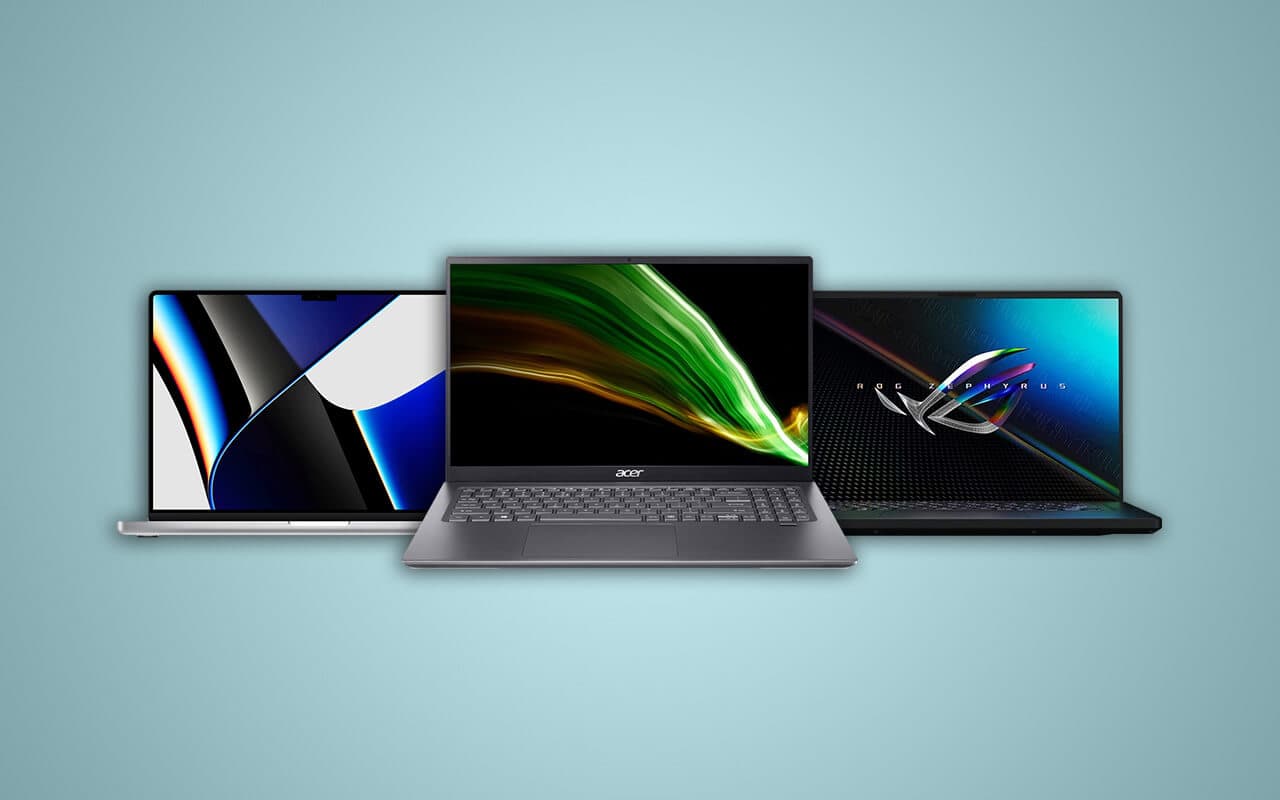
Disclosure: This post contains affiliate links. We earn a commission on purchases made through these links, at no extra cost to you.
Before the picks, the single most useful thing this guide can tell you: most bioinformatics work does not need a discrete GPU. Sequence alignment, variant calling, genome assembly, RNA-seq, R/Bioconductor, and pandas pipelines are bound by RAM, CPU cores, and storage — not graphics. The exception is local deep learning (AlphaFold, ESMFold, single-cell ML), which is genuinely GPU- and VRAM-hungry.
The second useful thing: for most students and researchers, the laptop is a development machine and a thin client. The heavy compute runs on your institution's HPC cluster via Slurm, or on AWS, submitted through Nextflow or Snakemake. That reality reshapes the priority list. Battery life, a good Unix environment, RAM headroom, and a large fast SSD matter far more than a mobile RTX card.
So spend your money in this order: RAM first, CPU second, SSD third, GPU almost never.
Quick comparison
| Laptop | CPU | RAM (upgradeable?) | dGPU | Approx. price |
|---|---|---|---|---|
| MacBook Pro 14" (M5 Pro) | Apple M5 Pro | 24–48GB (no) | — | ~$2,199+ |
| MacBook Air M5 | Apple M5 | 16–32GB (no) | — | ~$1,099+ |
| Lenovo ThinkPad T14 Gen 6 | Core Ultra 7 255U | 32GB (yes, to 64GB) | — | ~$1,500–2,200 |
| Framework Laptop 13 | Ryzen AI 300 | Yes, to 96GB | — | ~$1,499+ |
| System76 Lemur Pro | Panther Lake Core Ultra | 32GB | — | ~$1,923+ |
| Lenovo IdeaPad Slim 5 / Acer Aspire | Ryzen AI / Core Ultra 5 | 16GB (often yes) | — | ~$500–700 |
| ASUS ProArt P16 | Ryzen AI 9 HX 370 | 32–64GB (no) | RTX 5070–5090 | ~$2,000–4,499 |
| Lenovo ThinkPad P16 Gen 3 | Core Ultra 9 HX | To 192GB, ECC | RTX PRO 5000 | ~$3,000–9,000+ |
How we picked
We prioritized the specs that actually govern bioinformatics throughput: memory capacity (and whether you can add more later), multicore and single-thread CPU performance, NVMe capacity, and the quality of the Unix/Linux environment. GPU only enters the picture for the local-ML bucket. Specifications come from manufacturer spec sheets and reviews at Notebookcheck and Tom's Hardware; Apple Silicon compatibility claims are drawn from Bioconda's and nf-core's own published support data. Prices are July 2026 street ranges and move constantly.
1. Apple MacBook Pro 14" (M5 Pro) — Best overall
- Chip: Apple M5 Pro (up to 18-core CPU / 20-core GPU)
- RAM: 24GB base, configurable to 48GB — unified, soldered
- Storage: 1TB base, up to 4TB
- Price: ~$2,199–2,499+
The MacBook Pro has become the default machine in a lot of bioinformatics labs, and the reasons are unglamorous: it's a certified Unix system with a first-class terminal, the multicore performance is excellent, it runs silent, and the battery lasts a full day of remote cluster work. Apple Silicon compatibility is no longer the worry it was — Bioconda has supported native osx-arm64 since July 2024, and 93 of its 100 most-used packages now build for it.
Pros: Best-in-class battery and build, genuinely strong multicore, real Unix shell, excellent display.
Who it's for: Researchers and postdocs who want one machine that does everything well. Weakness: Memory is soldered, so buy what you'll need for the machine's whole life — and x86-only Docker images run under emulation, which is slow (see the caveat below).
2. Apple MacBook Air M5 — Best for students
- Chip: Apple M5 (10-core)
- RAM: 16GB standard, options to 24GB or 32GB
- Storage: 512GB base
- Price: From ~$1,099 (13")
If your workflow is coursework, R and Python, and SSH sessions into a cluster, the Air is all the laptop you need — around 18 hours of battery, fanless silence, and the same Unix environment as the Pro. Push to 24GB if the budget allows; 16GB is a workable floor, not a comfortable one.
Pros: Superb battery, silent, light, the same ARM software story as the Pro, genuinely affordable at the base tier.
Who it's for: Undergraduates and master's students. Weakness: 16GB soldered on the base model is limiting for local analysis, and sustained heavy jobs will throttle without a fan.
The Apple Silicon caveat, honestly
Native Arm support is now broad: nf-core reports 61 of its top 101 pipelines run fully on Arm, and Oxford Nanopore measured native Arm containers running 4–5× faster than emulated x86 ones. But two frictions remain. x86-only Docker images must run under emulation, which is slow enough to matter. And Apptainer/Singularity — the container runtime standard on shared HPC — doesn't run natively on macOS; you need a Linux VM. If your lab's pipeline is built on Singularity, factor that in.
3. Lenovo ThinkPad T14 Gen 6 — Best Windows/Linux laptop
- CPU: Intel Core Ultra 7 255U
- RAM: Two DDR5-5600 SO-DIMM slots — user-upgradeable to 64GB
- Storage: 1TB NVMe, user-replaceable
- Price: ~$1,500–2,200 configured
The T14's advantage over every soldered ultrabook is simple and decisive: start at 32GB, add 32GB more when your datasets outgrow it. The T-series is also among the best-supported laptop lines under Linux, with mature kernel and driver support for Ubuntu and Fedora, and it runs WSL2 cleanly if you'd rather stay on Windows.
Pros: Upgradeable RAM and storage, excellent Linux compatibility, superb keyboard, repairable, plenty of ports.
Who it's for: Anyone who wants a Linux or Windows machine they can grow into. Weakness: Battery and chassis are a step below the X1 Carbon, and the U-series CPU trades peak multicore for efficiency.
Note the trap in the premium alternative: the ThinkPad X1 Carbon Gen 13 is lighter and nicer, but its RAM is soldered and capped at 32GB forever.
4. Framework Laptop 13 — Best for upgradeability
- CPU: AMD Ryzen AI 300 series
- RAM: DDR5 SO-DIMM, officially up to 96GB
- Storage: User-replaceable NVMe
- Price: DIY from ~$1,499
If your fear is buying a laptop that can't hold your data in memory three years from now, this is the answer. Framework is user-repairable end to end, officially supports Fedora and Ubuntu, and takes up to 96GB of RAM — a ceiling no thin-and-light competitor comes close to. The Framework Laptop 16 adds an optional discrete GPU module.
Pros: 96GB RAM ceiling, everything is replaceable, Linux-first support, no soldered anything.
Who it's for: Linux users and anyone who wants to buy once and upgrade for years. Weakness: Battery life trails the MacBooks badly, and the chassis is functional rather than premium.
5. System76 Lemur Pro — Best Linux out of the box
- CPU: Intel Panther Lake (Core Ultra 5 325 / Core Ultra X7 358H)
- RAM: 32GB
- Storage: Up to 4TB
- Price: From ~$1,923 (14") / ~$2,282 (16")
The Lemur Pro ships with Pop!_OS or Ubuntu already installed and configured — no driver hunting, no suspend bugs, no Wi-Fi firmware weekend. Around 18 hours of battery, and System76 supports the machine as a Linux computer rather than a Windows one you've reformatted.
Pros: Linux preinstalled and properly supported, excellent battery, light.
Who it's for: People who know they want Linux and don't want to fight for it. Weakness: Expensive for the specification, and a smaller support ecosystem than Lenovo or Dell. Verify current RAM upgradeability on the configurator before ordering if that matters to you.
6. Budget picks — Acer Aspire, ASUS Vivobook, Lenovo IdeaPad Slim 5
- CPU: Ryzen AI or Intel Core Ultra 5
- RAM: 16GB, often with a SO-DIMM slot for later upgrade
- Price: ~$500–700
Be clear-eyed about what a student actually needs: if the heavy jobs run on the university cluster, your laptop is an editor, a terminal, and a browser. Any of these will do that for well under $700. The one specification to check carefully is whether the RAM is a socketed SO-DIMM rather than soldered — that's what lets you go to 32GB in year two.
Pros: Cheap, entirely adequate for coursework and cluster work, frequently upgradeable.
Who it's for: Undergraduates and master's students on a budget. Weakness: Weaker sustained CPU, dim displays, and mediocre battery compared with the premium picks.
7. ASUS ProArt P16 — Best for local deep learning
- CPU/GPU: AMD Ryzen AI 9 HX 370 + RTX 5070 (8GB) to RTX 5090 mobile (24GB)
- RAM: 32GB or 64GB LPDDR5X — soldered
- Price: ~$2,999 (RTX 5070/64GB) to ~$4,499 (RTX 5090/64GB)
This is the machine to buy only if you run AlphaFold, ESMFold, or single-cell ML models locally and often. If you do, the specification that matters is VRAM, not the GPU's name: the RTX 5070's 8GB is genuinely limiting for protein-structure work, so target the RTX 5080's 16GB or the RTX 5090 mobile's 24GB, and take 64GB of system RAM.
Pros: Serious local ML capability, excellent color-accurate OLED, strong CPU.
Who it's for: Structural biologists and ML-heavy researchers who need offline iteration. Weakness: Soldered RAM, heavy, hot, poor battery under load — and if your deep learning can run on the cluster or a rented cloud GPU, this is money wasted. A gaming-class Lenovo Legion Pro with an RTX 5080 reaches the same VRAM for less.
8. Lenovo ThinkPad P16 Gen 3 — Best mobile workstation
- CPU/GPU: Intel Core Ultra 9 HX-series + NVIDIA RTX PRO 5000 Blackwell (24GB ECC)
- RAM: Up to 192GB DDR5 across four slots, with ECC options
- Storage: Multiple NVMe bays, 8TB+
- Price: From ~$3,000; $5,000–9,000+ configured
When you genuinely need to hold a large genome assembly or a huge single-cell object in memory, nothing else on this list can follow. 192GB of ECC RAM in a portable chassis is the whole pitch, and ECC matters when a silent bit-flip could corrupt a week-long job.
Pros: Enormous RAM ceiling, ECC memory, workstation GPU, multiple drive bays.
Who it's for: Researchers doing large assemblies or local ML who can't rely on a cluster. Weakness: Very heavy, very expensive, poor battery. Dell's Pro Max (formerly Precision) line makes the same trade-offs.
How much of each spec do you need?
RAM — the spec that decides everything. 16GB is the practical minimum for students doing coursework and cluster work. 32GB is the recommended default for real local analysis: multiple containers, RStudio, a browser, and an alignment running at once. 64GB and up is for large genome assembly, big in-memory single-cell objects, and local ML. Wherever you can, choose socketed SO-DIMM memory (ThinkPad T-series, Framework, most budget machines) over soldered LPDDR (all MacBooks, X1 Carbon, ProArt).
CPU — cores and single-thread both matter. BWA-MEM2, samtools, STAR, and most assemblers are multi-threaded, so physical core count drives wall-clock time. But plenty of pipeline steps and a great deal of R and Python code are stubbornly single-threaded, so per-core speed matters too. A modern 8–16 core chip — Apple M5/M5 Pro, Intel Core Ultra 200-series, AMD Ryzen AI 300 — is the sweet spot.
Storage — 1TB minimum, 2TB better. Raw FASTQ, BAM/CRAM files, and reference indexes run to tens or hundreds of gigabytes per sample. NVMe speed also helps the I/O-bound steps like sorting and indexing. Keep bulk data on the cluster or external storage; reserve the SSD for the active working set.
GPU — probably not. Only for local deep learning, and then buy VRAM.
Frequently asked questions
Do you need a GPU for bioinformatics?
Usually not. Alignment, variant calling, assembly, RNA-seq, Bioconductor, and pandas are CPU-, RAM-, and I/O-bound, and the heaviest jobs typically run on a cluster anyway. Buy a discrete GPU only if you're running deep learning locally — AlphaFold, ESMFold, protein-structure or single-cell ML — and if so, prioritize VRAM (16GB RTX 5080 minimum, 24GB better). Many researchers rent cloud GPUs instead of buying a hot, thermally-limited mobile one.
Is a MacBook good for bioinformatics?
Yes — it's one of the most popular choices, thanks to the battery, the build, and a real Unix shell. R, Python, and the CLI toolchain all work beautifully, and Bioconda now has broad native Apple Silicon support. The caveats: buy enough RAM up front because it's soldered, x86-only Docker images run slowly under emulation, Singularity needs a Linux VM, and there's no CUDA for GPU deep learning.
How much RAM do I need for bioinformatics?
16GB is the minimum for students; 32GB is the sensible recommendation for real local work; 64GB or more for large genome assembly, big single-cell datasets, or local ML. Favor a laptop with upgradeable memory if you can — see our guides to 32GB RAM laptops and 64GB RAM laptops.
Windows, Linux, or macOS for bioinformatics?
Linux is the native home of the toolchain (conda/mamba, Bioconductor, Nextflow, Snakemake, samtools, BLAST, Apptainer) and matches your HPC environment exactly. macOS is an excellent all-round experience with minor container caveats. Windows is entirely viable if you use WSL2 to run Ubuntu, with Docker Desktop integrated — just be aware that I/O across the Windows/Linux filesystem boundary is slow. All three work; Linux is happiest, and most students do fine on a Mac or a WSL2 setup that mostly talks to a cluster.
Can a laptop handle bioinformatics, or do I need a server?
A modern 16–32GB laptop handles learning, development, small and medium datasets, and submitting and monitoring pipelines. Large-scale work — whole-genome assembly, big cohorts, population-scale analysis — needs an HPC cluster or the cloud. That's the normal setup, not a compromise: your laptop is the dev machine and remote client, and the shared infrastructure does the lifting.
The final verdict
For most researchers, the MacBook Pro 14" with the M5 Pro is the best all-around bioinformatics laptop — provided you configure enough memory at purchase, because you can never add it. Students should look hard at the MacBook Air M5 or a $600 machine with a spare RAM slot; both do the job when the cluster does the compute.
If you want a laptop that grows with your datasets, the ThinkPad T14 Gen 6 (64GB) and the Framework Laptop 13 (96GB) are the only sensible choices here. And resist the GPU upsell unless you're genuinely training models on your own machine.
Related reading: our guides to the best laptops for data science, best laptops for machine learning, and best laptops for programming.

Tech enthusiast and founder of Technize. Passionate about making technology accessible and helping people make smarter buying decisions.